Zinfra or Jemena Training Providers first register in the Worker Authorisation System. Once registered, they will be able to access the WAS Trainer Portal, where they can manage training results for workers.
A nominated administrator from your business will be required to complete the steps below for your business and each worker (trainer).
Upon WAS registration, trainers will be able to access the WAS Trainer Portal. It will appear as a tile on the home page once trainers are logged into the portal.
For help, user guides with screenshots can be found on the Help and Resources page.
Please ensure you use the Google Chrome internet browser to access the trainer portal. Chrome can be downloaded free here.
GETTING REGISTERED
STAGE 1: REGISTER YOUR BUSINESS
Step 1 > Create your supplier profile
Click here to create your supplier profile, username and password and get started.
If your business is already registered in Avetta, go to Step 2
Step 2 > Connect to Zinfra
In the ‘Find Connections’ search field, type Zinfra Jemena.
Add the site and select Next in the upper right-hand corner.
Step 3 > Service Evaluation
Enter your ABN (if applicable) and complete a quick service evaluation to identify the services your organisation provides.
Select Next in the upper right-hand corner once complete.
Step 4 > Checkout
The cost to join the program is based on the level of compliance required for your business and the type of services your company offers.
Enter your payment details and confirm your payment.
Please note that adding additional clients in the Avetta system may increase your annual membership cost. Any increase will be generated and charged via future invoices.
Step 5 > Zinfra Jemena Prequalification
Select the Network button in the left-hand menu and get started on the prequalification requirements for Zinfra Jemena. These may include, but not be limited to:
-
-
- Company information and locations
- Safety information
- Insurances
- Licences
Insurances and licenses will be verified by the Avetta team, who will reach out should any corrections be required.
You must complete all prequalification requirements for Zinfra Jemena before your company will be considered compliant.
To reach full compliance to work for Zinfra Jemena, you must next register your workers.
The training, authorisations, and network inductions of Zinfra Power Services (Victoria) workers will be managed in the ESI worker portal.
For other divisions, to complete your registration you will next be invited to register your workers.
Please click to expand Stage 2.
-
STAGE 2: REGISTER YOUR WORKERS
Step 1 > Login and add workers
From the Connect system, select the Workers tile in the left-hand menu, then select Pegasus Workforce.
If you don’t immediately see the Zinfra Jemena tile, click on the Add or Remove Portals and select the Zinfra Jemena tile.
Select Manage Roles and then Add New Employee to enter each worker’s details. Use each worker’s personal email address and mobile number, as they will receive important emails regarding expiring competencies and additional tools to access.
If your worker already exists, simply click on their profile.
Step 2 > Pay for worker registration and access ID card
Pay for your worker’s registration and order their access ID cards to work for Zinfra or Jemena.
-
- Worker registration costs $103.50 + GST per person for the first year for the management of roles, verification of documents, and supply of card.
- Annual renewal costs $86.25 + GST per person.
A tax invoice will be supplied upon receiving payment.
Step 3 > Add roles, upload documents and book training
You will next select your worker’s name to Add New Role and choose their Zinfra and/or Jemena work role/s based on division.
You must select one of the roles below AND the task role(s) best suited to your workers activities on site. If you are unsure of your task role, please contact your Zinfra or Jemena representative.
If you are a Zinfra Electrical Contractor or a Gas Contractor working on a non-Jemena network please select one of the following –
-
- Zinfra Electrical Contractor
- Zinfra Electrical Contractor with VOC
If you are a Zinfra Gas Contractor working on a Jemena network, please select one of the following –
-
- Zinfra Gas Contractor
- Zinfra Gas Contractor with VOC
Your selections will determine the competency documents which need to be uploaded in the system to prove your worker is can complete the chosen role/s. Documents may include but are not limited to:
-
- Photograph
- Proof of Identity
- Generic Induction Cards
- High Risk Licenses
- Trade or Tertiary Qualifications
- Certificates or Statements of Attainment
At this time, you will also book your worker’s online safety inductions. They will be emailed the login details to complete the online induction which completed induction records and certificates will be automatically upload to relevant worker profile.
Note: Zinfra Power Services (Victoria) maintain worker records in ESI Worker.
We will validate the documents you upload during registration. You will be emailed to update any required information. Upon document approval and induction completion, the roles will be applied to your worker’s profile and their access ID cards printed and sent.
Invitation to the Workforce Mobile App
Your worker will be automatically invited to join the Workforce Mobile Application (this may take up to 24 hours after verification). The invitation will be sent via email from Avetta to the email address recorded against the worker’s profile.
The Workforce Mobile Application will contain their digital access card which they can use to gain access to approved Zinfra sites. Workers can also complete their online induction via the app.
For more information regarding the Workforce Mobile App, click here.
If you require assistance, please call 1300 208 498 or email zinfrajemena@pegasus.net.au
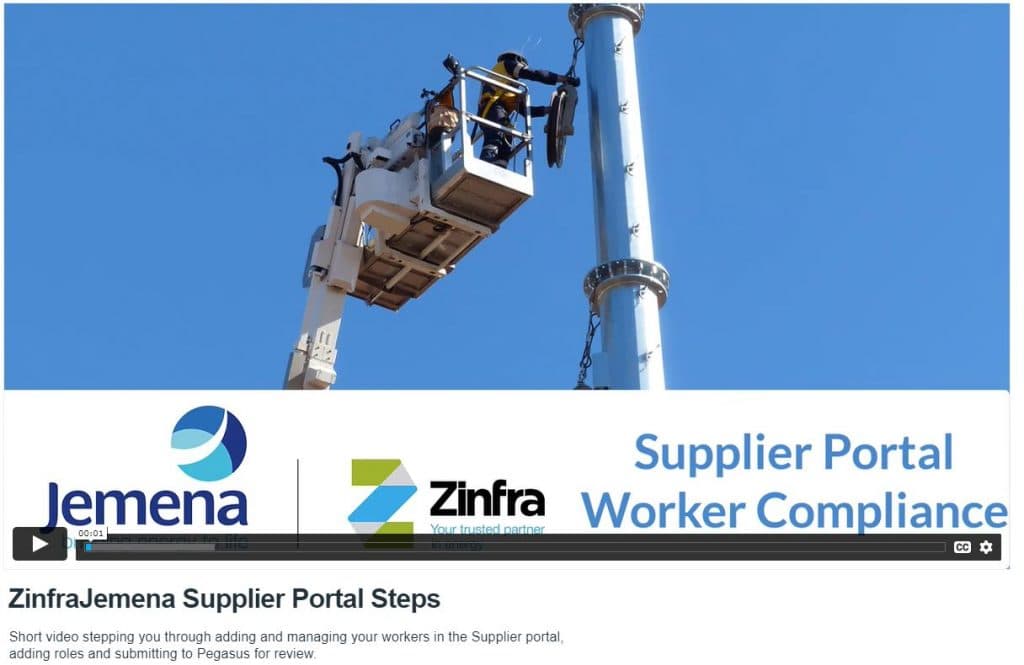
MANAGING TRAINING IN THE WAS
From the Connect system, select the Workers tile in the left-hand menu then select Pegasus Workforce. Select the Zinfra Jemena tile, then select the Trainers Portal.
Step 1 > Create a class
Enter the details of the class: name, trainer, venue, and date.
Step 2: Add competencies
Search the list of competencies by scrolling or entering the name (or partial name) in the search box. Select the competencies that will be delivered by this class.
Step 3 > Add attendees
Add the attendees by scanning their WAS card, or by entering their first name, last name, ID number, or date of birth.
Step 4 > Resulting
Mark each attendee as competent, not competent or not attended and submit the Training Report Summary.
FREQUENTLY ASKED QUESTIONS
Why can’t I see the Trainer Portal?
If you are an enrolled trainer in the WAS, you will be able to open and view the trainer portal when using the Google Chrome internet browser. Chrome can be downloaded free here.
What do I do if there is no internet connection?
Take a photo of the worker’s WAS card so you have their profile numbers, and create and submit the training when you have internet connection.
Can my training administrator complete classes on my behalf?
No. Portal access will only be given to the trainer.
Can I set my classes up in advance?
Yes, the portal allows you to create classes in advance.
How do I change companies in the WAS if I train for multiple organisations?
You will receive a separate login to the WAS for each company. To change company, logout and login again using your alternate user name and password.
What do I do if the worker has not brought their WAS card to training?
You can search for the worker using their name and date of birth. Alternatively, ask them to contact their employer to obtain their profile number.
What do I do if the worker is not in the WAS?
In this case, business as usual processes apply. The worker’s employer will need to create an account and upload their certificates when they are received.
Can I share my user name and password?
No. Trainers must have their own profile and user access.
Do I have to enter the results on the day of the training?
Yes, to ensure the worker is compliant.
I am conducting refresher training over multiple days. How should I create my classes?
- Each course day should be created separately, with the courses to be undertaken then assessed and submitted on each day.
- For the same course over multiple days e.g. HV Live Work, the course should be resulted on the completion of the training.